
Azure Virtual Desktop
Azure Virtual Desktop (AVD) is a state-of-the-art cloud desktop for all students, on or off-campus. It runs many apps you might not have on your own PC, offering a full Windows 11 experience like on-campus PCs.
It includes the Microsoft Office suite and LJMU OneDrive. AVD works on many devices including Chromebooks, iPads, macOS and Microsoft Windows desktops and laptops, so you can access software for your courses easily and securely.
Two desktops for LJMU students
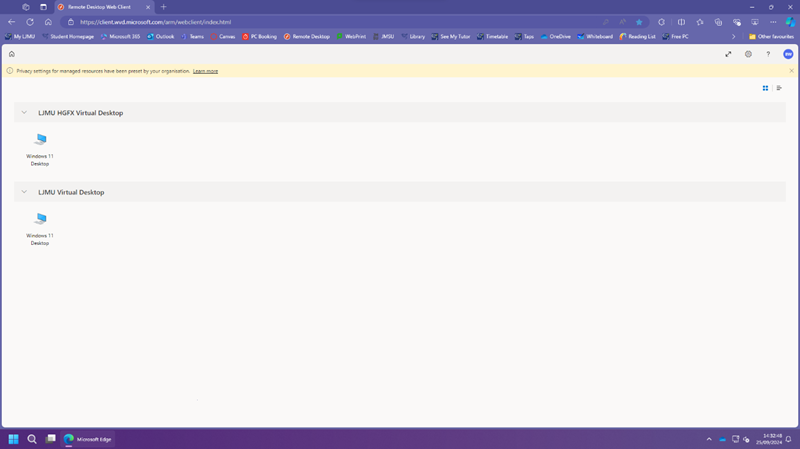
- Windows 11 Virtual Desktop: Available to all students, offering a wide range of standard apps.
- LJMU HGFX Virtual Desktop: Designed for courses requiring high-powered graphics software and Adobe CC (if licensed).
New this year
- A brand-new Windows 11 desktop user interface with built-in tools such as a calculator and screen capture software.
- Rolling out lots of new applications.
- No more M drive access on AVD, but you have full access to LJMU OneDrive. Move files to OneDrive before using AVD. We have a guide on how to migrate your files to OneDrive.
Please note
In order to use this service you will need to have registered for Multifactor Authentication. See further information on MFA including how to register.
Downloading the Azure virtual desktop app
Faq Items
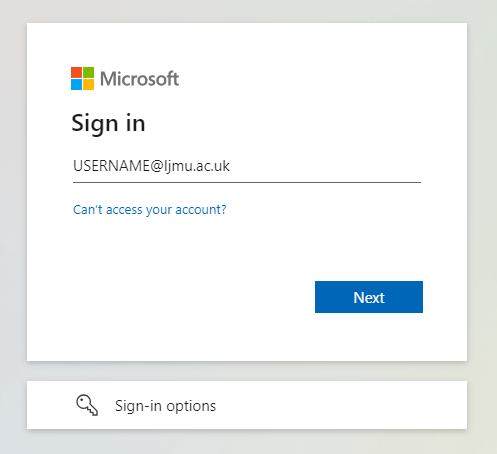
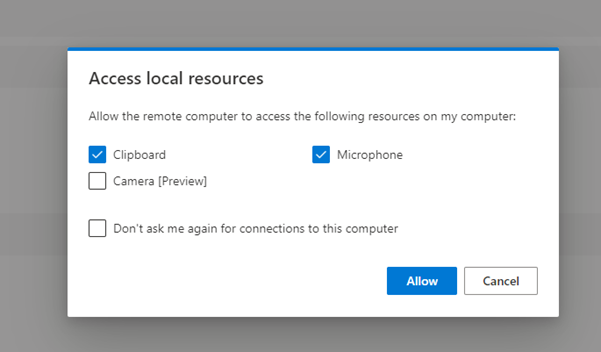
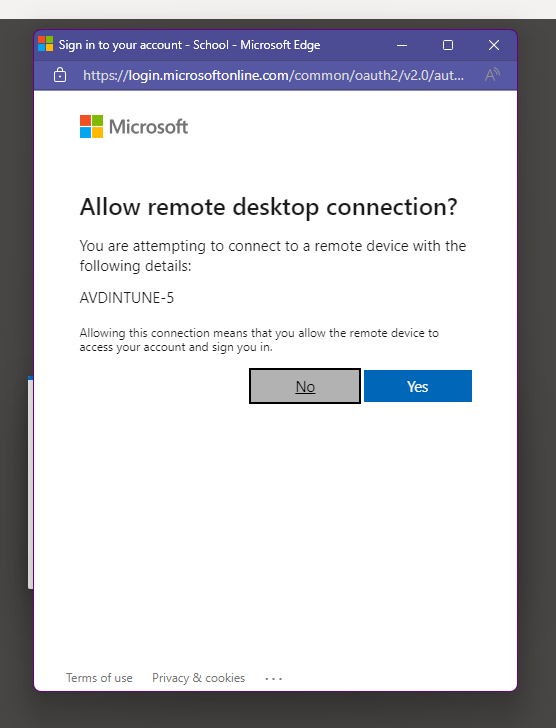
AVD Web Client
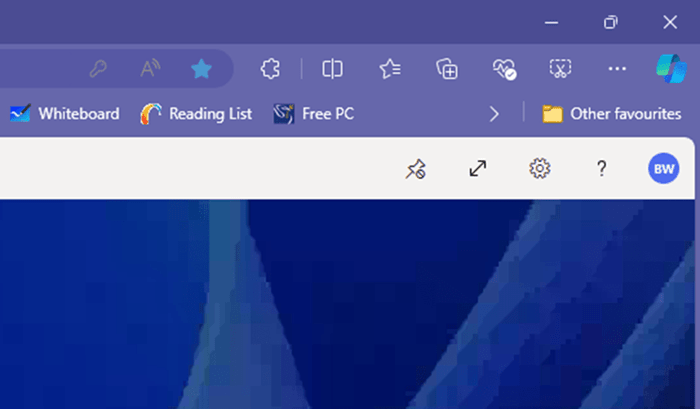
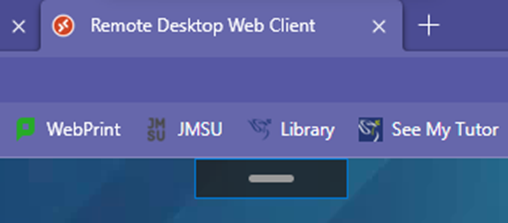
Windows


macOS
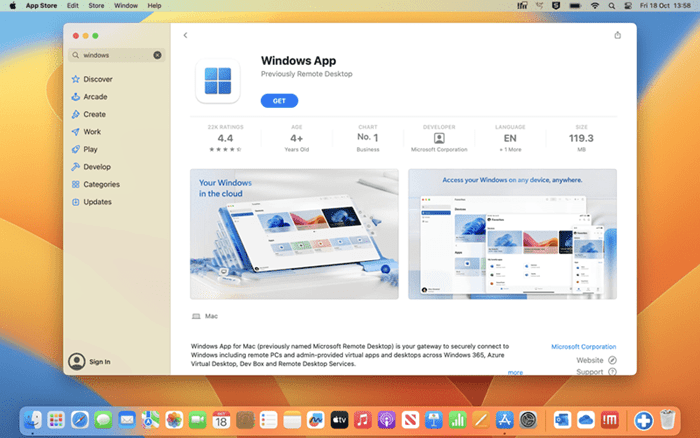
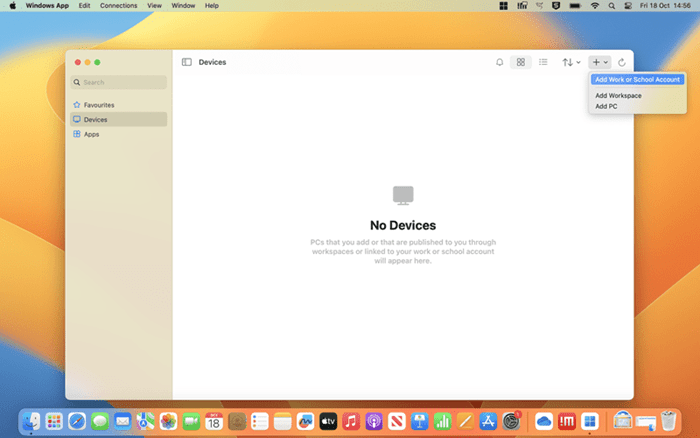
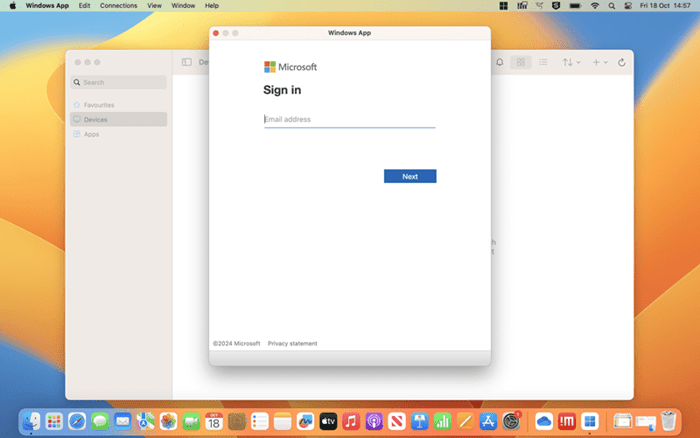
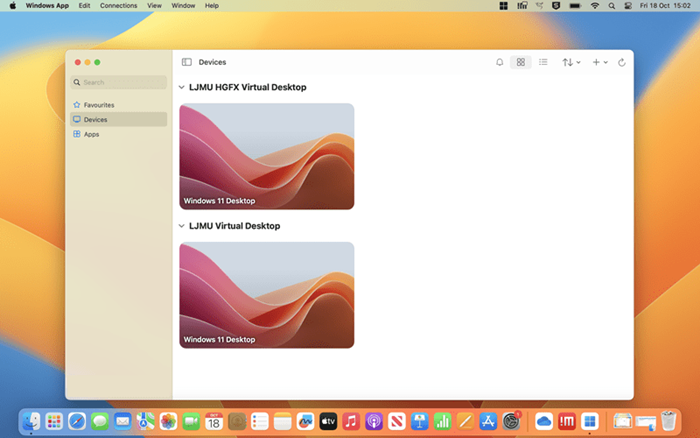
iPadOS
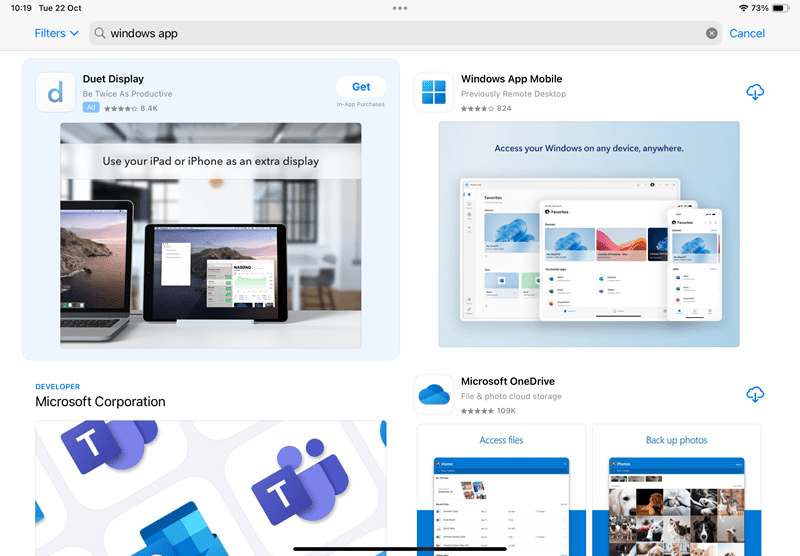

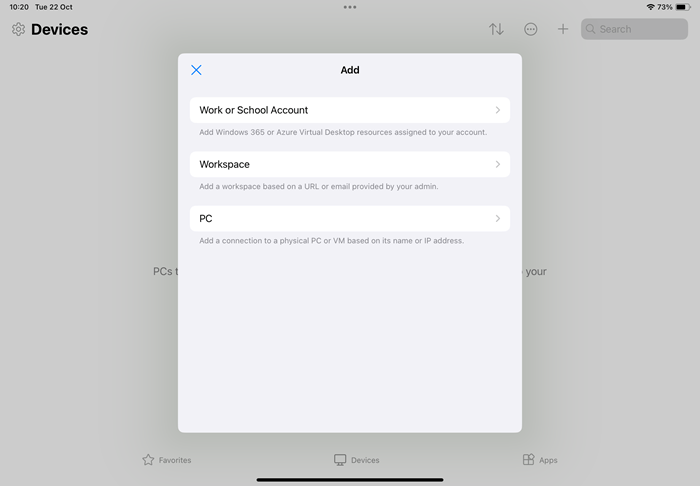
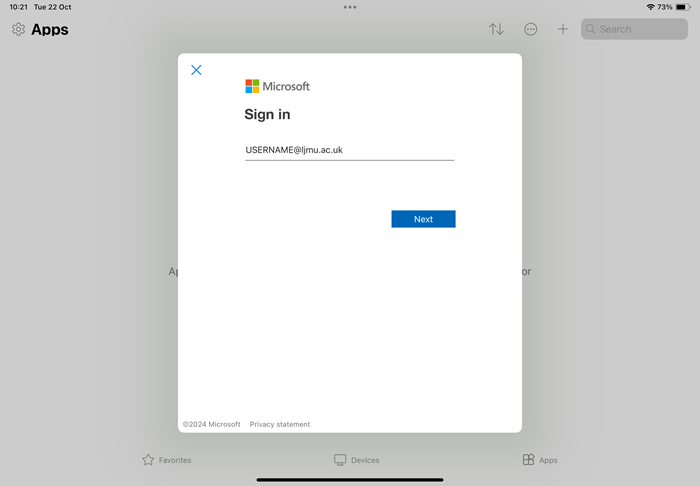
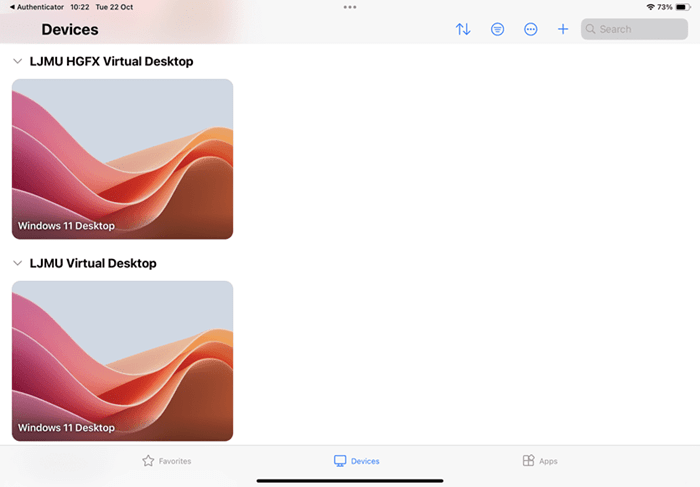
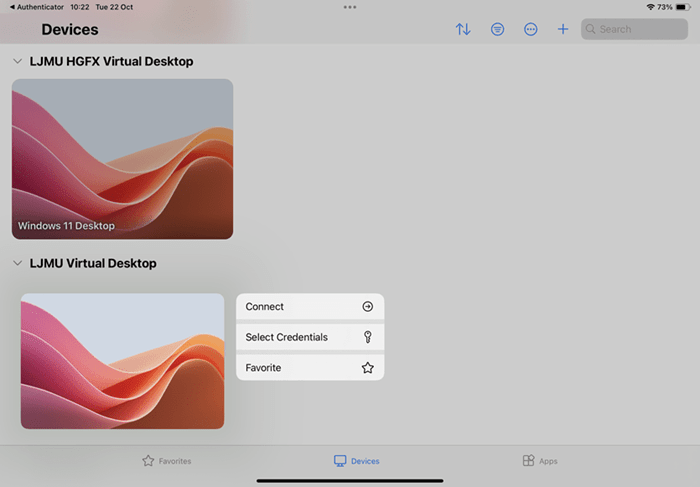

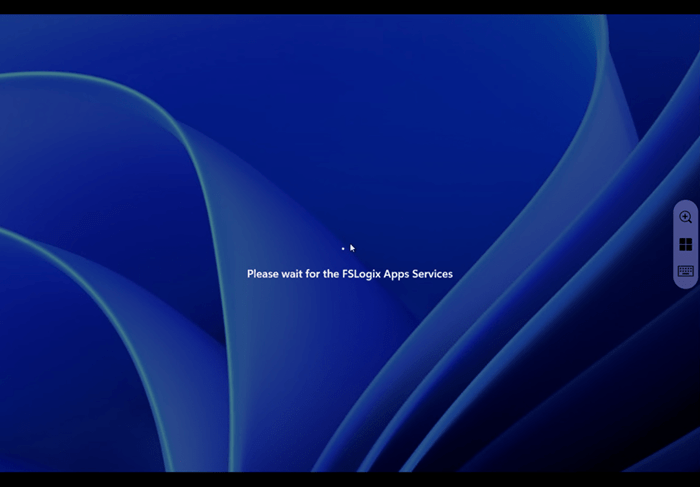
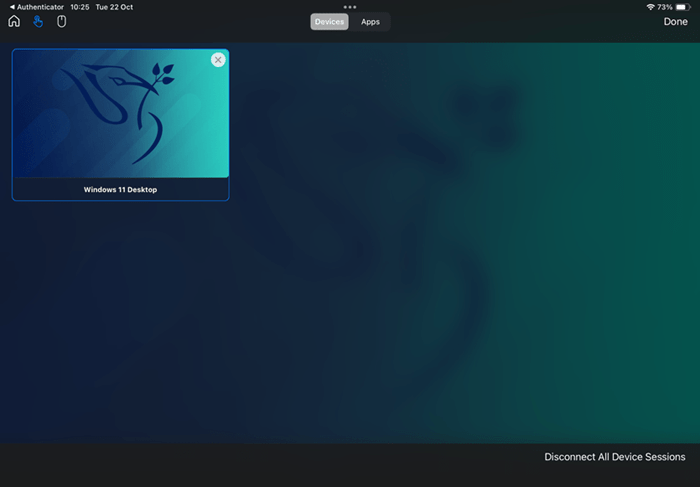
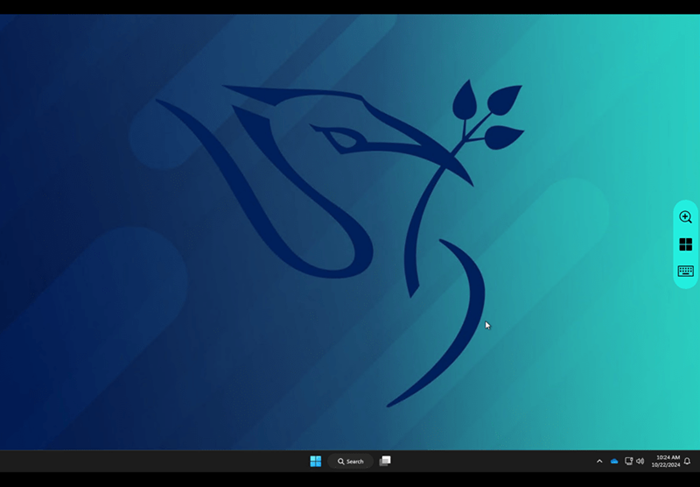
Using the AVD
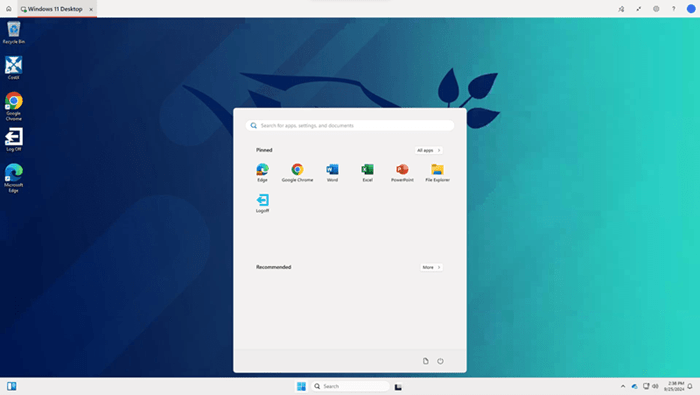
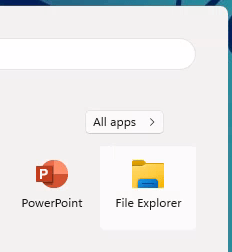
Unlike our on-campus PCs, all of the apps are located in the Start menu by clicking the "All apps" button located in the top right-hand side of the start menu. Core apps such as Web Browsers, Canvas and Office 365 (Word, PowerPoint, Excel and OneNote) can be found on the front of the start menu for easy access.
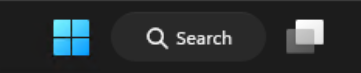
You can also search for applications using the search bar, located in the middle of the taskbar.
You can find all your files by pressing the file explorer icon on the start menu and then pressing OneDrive. This new AVD does not connect to your M Drive.
When saving files on the AVD, Please refrain from saving personal files to the C:\Temp Area, this is accessible by all LJMU Computer Users and can also slow down the AVD. Please save all files to OneDrive where possible. IT Services regularly will delete the contents of C:\Temp when the AVD is running slow.
When you have finished with your AVD session, you can disconnect by using the logoff button on either the desktop or the start menu. The same as you would on an on-campus computer.

Apps on the AVD
We are constantly working on improving our AVD to give everyone the best experience and accessibility to the LJMU network and the software that we provide. Keep your eye on this page every month or so as we work on making more applications available in the AVD.
If you have any suggestions as to apps, you might find useful for your course on AVD then please do contact us via LJMU Assist. Remember to specify in the ticket that this app request is for the AVD.
Have a look at the list below to see what apps are already available on the AVD.
Faq Items
LJMU standard virtual desktop
LJMU HGFX virtual desktop
Adobe HGFX virtual desktop
Need help? If you have any issues with AVD, raise a ticket with the IT helpdesk using the link below.
Raise a helpdesk ticket to IT Services in regard to AVD
If you require access to a HGFX desktop but do not have access then you will have to request it below.